
A First Look at Managing Your Digital Life Across Multiple Devices
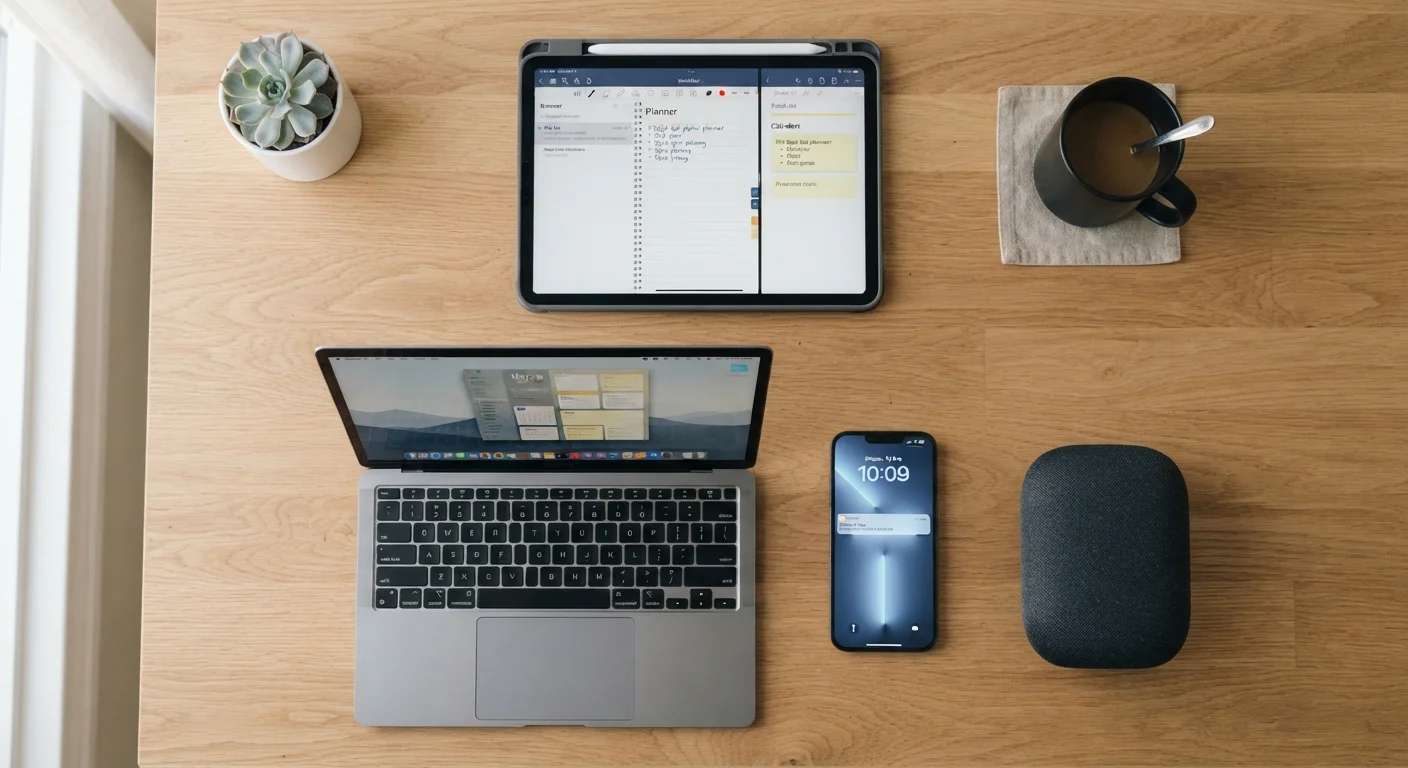
Photo: faqsvault.com editorial
Key Takeaways
- Most digital chaos comes from not having a consistent system across devices — not from the technology itself.
- Cloud storage and ecosystem accounts are the two primary tools that keep your content accessible everywhere.
- App permissions and password hygiene matter more when the same accounts span multiple devices.
- A light weekly review of your digital setup prevents small problems from becoming major headaches.
- Reducing app clutter and unnecessary sync activity can improve both device performance and your focus.
Why Multi-Device Life Gets Complicated
The average US household now uses several connected devices — phones, tablets, laptops, smart TVs, and sometimes e-readers or smart speakers. Each one is useful on its own, but together they can create a fragmented experience: a document started on your laptop isn't on your phone, a photo taken on your tablet doesn't appear on your computer, and passwords seem to multiply endlessly.
The friction isn't usually a technology failure. It's the absence of a consistent system that connects all those devices into something coherent. Without a deliberate approach, you end up managing multiple separate digital lives rather than one portable, organized one.
This guide is a practical starting point for everyday users who want more control without becoming IT specialists. Whether you use two devices or six, the same core principles apply. For a broader look at how everyday tech tools work together, see how everyday gadgets complement each other.
Key Concepts Before You Start
A few foundational ideas will make the rest of this guide easier to follow. Understanding what these terms mean in plain language removes a lot of the intimidation from multi-device management.
Ecosystem account
A single login — like an Apple ID, Google account, or Microsoft account — that ties your devices and services together, allowing them to share data and settings automatically.
Cloud sync
The process of automatically saving and updating your files or settings on remote internet servers so the latest version is available on any connected device.
Local storage
Files or data stored directly on a device's internal drive or memory card, accessible without an internet connection but not automatically available on other devices.
Two-factor authentication (2FA)
A security method that requires two separate forms of verification — typically a password plus a code sent to your phone — before granting access to an account.
App permissions
Settings that control which parts of your device — such as your camera, microphone, contacts, or location — an app is allowed to access.
Password manager
A secure application that stores and organizes your passwords so you only need to remember one master password, while the manager fills in the rest automatically.
These concepts interact constantly. Your ecosystem account connects your devices; cloud sync keeps your files available across them; and the local storage on each device holds what isn't synced. Getting a basic feel for how each one works — and where your files actually live — is the essential first step. For a deeper dive into the storage side, understanding cloud vs. local storage is a useful follow-up read.
Syncing Essentials: What to Prioritize First
Not everything needs to sync everywhere, and trying to sync everything at once is a fast path to confusion. A more effective approach is to identify the few categories of information that genuinely need to be available across all your devices and start there.
- Contacts and calendar: These are foundational. Syncing them through your primary account (Google, Apple ID, or Microsoft) ensures you never lose a phone number or miss a scheduled event when switching devices.
- Photos: Automatic photo backup to cloud storage means images taken on your phone appear on your laptop without any manual transfer. Review your storage limits periodically so backups don't silently stop when you run out of space.
- Documents and files: A cloud-connected folder (such as Google Drive, iCloud Drive, or OneDrive) acts as a universal briefcase — open a document on one device, continue on another. Keep your most-used files here rather than scattered across your desktop.
- Passwords: A password manager that works across your devices removes the need to remember dozens of credentials and reduces the temptation to reuse weak passwords. Most major options offer browser extensions and mobile apps that work together.
If you also manage a music library across devices, organizing your music collection offers practical guidance on keeping that side of your digital life tidy too.
Security and Permissions Across Devices
Each device you add to your digital ecosystem is another potential entry point for unwanted access. This doesn't mean you should be alarmed — it means a few consistent habits matter more when you have multiple devices sharing the same accounts.
Two-factor authentication (2FA) adds a verification step beyond your password. Enabling it on your primary accounts — email, cloud storage, and any financial or health-related apps — means that even if a password is compromised, access is still blocked without a second confirmation.
App permissions are worth reviewing on each device individually. An app that you've granted camera or location access on your phone may have been granted the same permissions on your tablet without you noticing. Understanding what each permission enables puts you back in control of what each app can actually do.
Also consider what happens if a device is lost. Most platforms include a way to remotely sign out of your account on a missing device. Taking five minutes to locate this setting in your account's security panel — before you ever need it — is time well spent.
Shared Devices Need Extra Care
Building Habits That Keep It All Together
A well-organized multi-device setup doesn't stay that way automatically. Small, regular habits prevent the gradual drift back toward digital clutter.
Do a light weekly check: Glance at your cloud storage usage, confirm your photo backup is current, and clear any files you've downloaded but no longer need. This takes under five minutes and prevents small issues from compounding.
Remove apps you don't use: Unused apps don't just take up space — they can consume background data and create unnecessary security exposure. The hidden costs of too many installed apps explains why a leaner app library benefits both performance and privacy.
Be intentional about what syncs where: You don't need work email on your TV or personal photos on a work tablet. Tailoring sync settings to each device keeps things simpler and reduces notification overload.
For readers who want to think more holistically about how their digital routines fit into daily life, balancing digital and physical daily habits offers a broader perspective. And if managing multiple devices ever starts to feel draining rather than helpful, building a calmer relationship with your devices is a practical next step.
Frequently Asked Questions
All published content on this website is for informational and educational purposes only and should not be taken as professional advice. We recommend that readers seek expert opinion before making any decisions. The website is not responsible for any actions taken based on the information provided on this website. We are not liable for any inaccuracies, modifications, or omissions in information. Moreover, external links or third-party content are provided for convenience; we are not liable for their correctness. Users are advised to verify every piece of information before they use it for any purpose.