
Organising Your Inbox Without Losing Your Mind

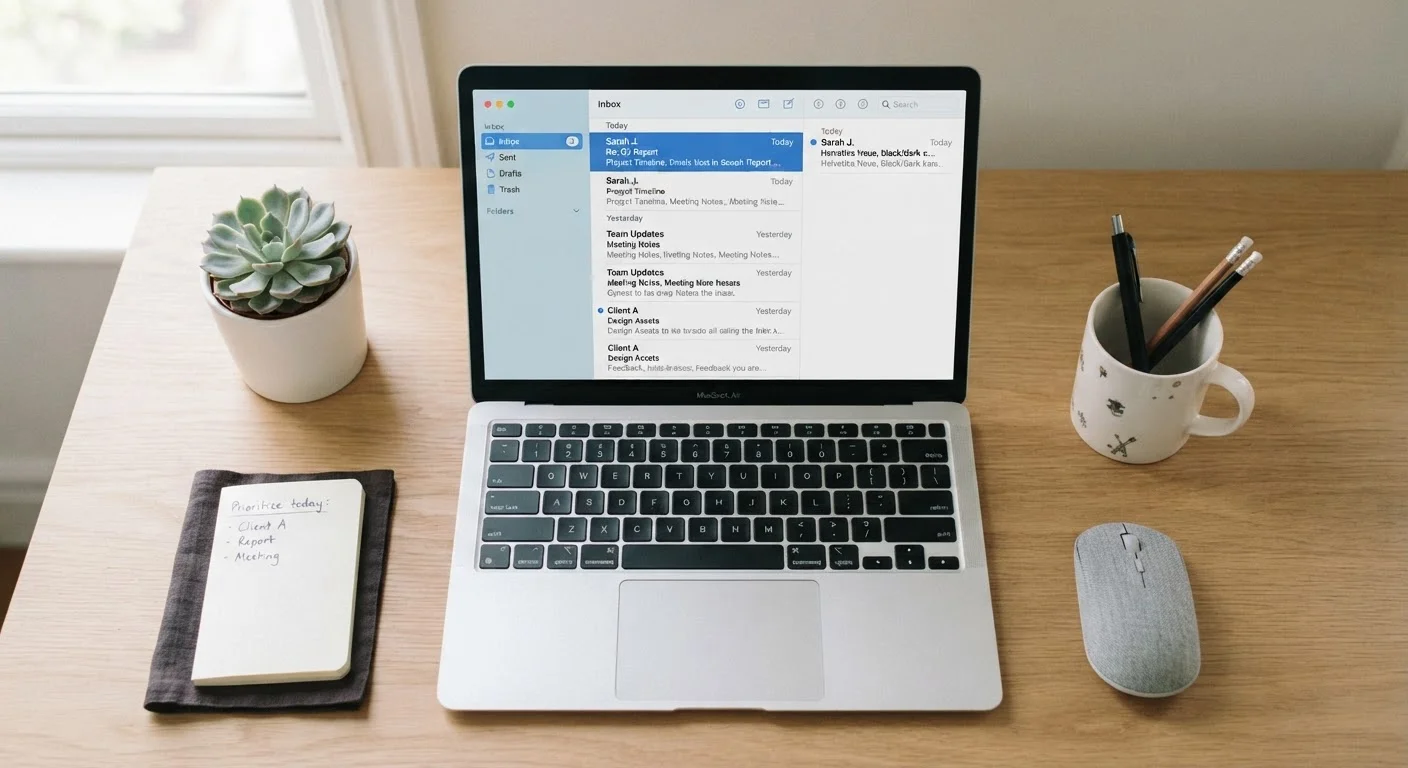
Photo: faqsvault.com editorial
Key Takeaways
- A structured folder or label system prevents important emails from getting buried in clutter.
- Unsubscribing from unwanted lists is more effective long-term than repeatedly deleting messages.
- Filters and rules automate sorting so your inbox stays organised without constant manual effort.
- A consistent 'inbox zero' habit doesn't require perfection — just a reliable decision framework.
- Reducing email notifications directly supports better focus and lower digital stress.
Why Your Inbox Feels Overwhelming
For most people, email wasn't designed to be a task manager, an archive, a notification centre, and a communication tool all at once — yet that's exactly how it gets used. When an inbox functions as all four simultaneously, it's nearly impossible to extract what actually matters. Research consistently links digital clutter, including email overload, to elevated stress and reduced productivity, even when the messages themselves aren't urgent.
The good news: inbox chaos is a structural problem, not a personal failing. With a few deliberate changes to how you set up and interact with your email, you can transform it from a source of low-grade anxiety into a reliable, functional tool. If managing digital organisation more broadly is something you're working on, the guide managing your digital life across multiple devices offers a useful companion overview.
What you will need
Setting Up Your System: Tools and Approach
Before diving into the steps, it helps to understand the core tools available to you. Most major email platforms — including web-based and desktop clients — offer some combination of folders or labels, filters or rules, and search. You don't need a premium plan or third-party app to implement a solid system; built-in features are sufficient for the vast majority of users.
Email folders or labels
Used to categorise and store messages by topic, project, or sender so you can locate them quickly later.
Filters or rules
Automatically sort, label, archive, or delete incoming messages based on criteria you define, reducing manual effort.
Search function
Allows you to retrieve specific emails quickly, reducing the need for an exhaustive folder hierarchy.
Unsubscribe tools
Built-in unsubscribe links or email client features that help reduce the volume of unwanted commercial mail at its source.
Once you have a sense of what your email client supports, the steps below walk you through building a sustainable inbox organisation system from the ground up.
Do a one-time bulk archive or delete
Before building any new structure, clear the backlog. Select all emails older than a defined cutoff — three to six months is a reasonable starting point — and archive or delete them in bulk. Most email platforms let you filter by date and select all matching messages at once.
Don't try to read or sort each one individually; the goal here is a clean slate. Anything genuinely critical from that period has almost certainly already been addressed or can be found via search if needed.
Create a minimal folder or label structure
Resist the urge to build an elaborate folder tree. A system with dozens of categories is harder to maintain than one with five to eight broad buckets. Common categories that work well for most inboxes include:
- Action Required — emails that need a response or task completed
- Waiting For — emails where you're expecting a reply or outcome
- Reference — information you may need later but requires no action
- Receipts / Financial — order confirmations, invoices, and statements
- Subscriptions — newsletters and updates you want to keep but don't need immediately
Your inbox itself should function as a temporary holding area — not a permanent category.
Unsubscribe from lists you never read
Scroll through your existing inbox and identify newsletters, promotional emails, or automated notifications you consistently ignore or delete without reading. For each one, use the unsubscribe link typically found at the bottom of the message. Most reputable senders are legally required to honour these requests promptly.
This step has an outsized long-term effect: reducing incoming volume is more efficient than repeatedly deleting the same types of messages every week.
Set up filters to automate sorting
Once your folder structure is in place, create filters (sometimes called rules) to automatically route incoming messages. Common filter rules include:
- Emails from your bank or payment services → move to Receipts / Financial
- Newsletters from senders you kept → skip the inbox and go to Subscriptions
- Automated notifications from project tools → archive immediately or label
Access filters through your email client's settings menu — typically under 'Filters', 'Rules', or 'Automatic Sorting'. Create one rule at a time and test each before moving on.
Establish a simple daily processing habit
An organised inbox only stays that way if you process new messages consistently. Set aside one or two defined times per day — rather than checking continuously — to work through what's arrived. For each email, make one of four decisions: delete it, reply immediately (if it takes under two minutes), file it, or flag it for follow-up.
The aim is not an empty inbox at all times, but a reliably up-to-date one where nothing important goes unnoticed.
Maintaining the System Over Time
Setting up an organised inbox is only half the work — the other half is keeping it that way without burning out. The most common reason inbox systems collapse is that they require too many manual decisions per email. Automation through filters handles the bulk of ongoing sorting, while a brief daily or weekly review keeps the remainder manageable.
Think of your inbox as a landing zone, not a storage space. Messages that arrive should be processed — acted on, filed, or deleted — rather than left to accumulate. This doesn't mean checking email constantly; in fact, reducing how often you check and respond is itself an organisational strategy. For a deeper look at how notification habits affect your attention and stress levels, the article your phone's notification settings are probably working against you is worth reading alongside this guide.
If you find that email stress connects to a broader sense of digital overwhelm, approaches discussed in building a calmer relationship with your devices can complement the practical steps here. Similarly, practices like journalling for mental clarity can help you process the mental residue that a chaotic inbox sometimes leaves behind.
All published content on this website is for informational and educational purposes only and should not be taken as professional advice. We recommend that readers seek expert opinion before making any decisions. The website is not responsible for any actions taken based on the information provided on this website. We are not liable for any inaccuracies, modifications, or omissions in information. Moreover, external links or third-party content are provided for convenience; we are not liable for their correctness. Users are advised to verify every piece of information before they use it for any purpose.