
Your Phone's Notification Settings Are Probably Working Against You

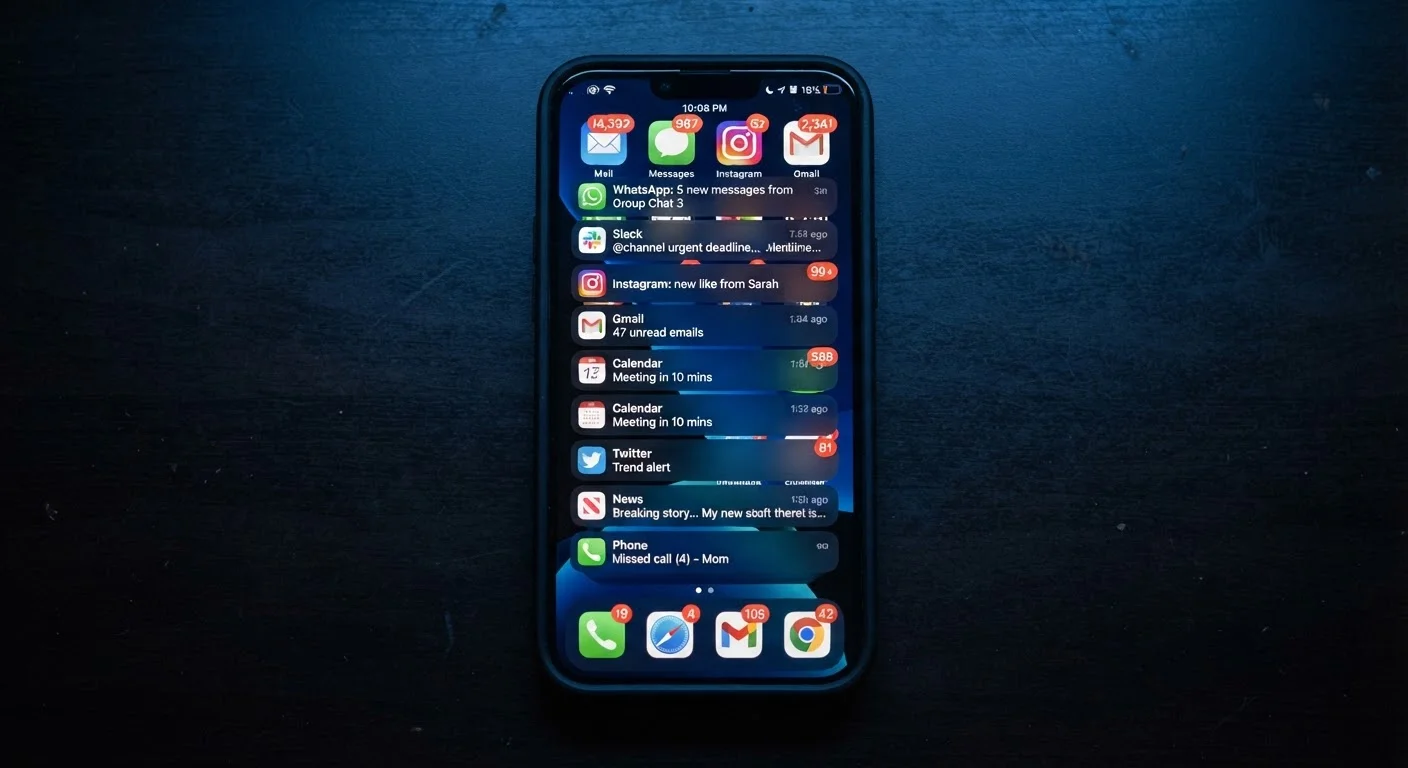
Photo: faqsvault.com editorial
Key Takeaways
- Default notification settings are configured by app developers, not optimized for your attention or wellbeing.
- Most phones offer granular controls — per-app, per-category, and scheduled quiet hours — that few users ever explore.
- Reducing notification volume doesn't mean missing important alerts; it means deciding which alerts actually deserve your attention.
- A periodic notification audit takes under 20 minutes and significantly reduces daily interruptions.
- Notification sounds, badges, and lock-screen previews can each be toggled independently for finer control.
Why Default Settings Work Against You
When you download an app, its notification defaults are set by the developer — not by you, and not with your productivity in mind. App makers have a strong incentive to request broad notification access: more alerts generally mean more engagement with their product. That's good for their metrics; it's rarely good for your focus.
Research in attention and cognitive load consistently suggests that frequent interruptions — even brief ones — fragment concentration and increase mental fatigue. Every banner that slides across your screen demands a micro-decision: Is this worth my attention right now? Multiply that by dozens of apps firing throughout the day, and the cumulative cost becomes significant.
The good news is that your phone already has sophisticated tools to address this. The problem is that almost no one uses them at their full depth. The steps below walk you through a practical audit that works on both iPhone and Android devices.
Open your phone's main notification settings
On iPhone, go to Settings > Notifications. On Android, open Settings > Notifications (sometimes listed as Apps & Notifications depending on your device manufacturer). This central hub shows every app that has ever requested permission to send you alerts.
Audit each app: keep, restrict, or revoke
Go through each app listed and ask yourself one question: Does this app's alerts ever require immediate action? For most apps — shopping, social media, games, news — the answer is no. For those, either turn off notifications entirely or switch to Deliver Quietly (iPhone) or Silent (Android), which allows alerts to arrive in the notification center without interrupting you in the moment.
Customize alert types per app
Most people don't realize that notifications aren't all-or-nothing. Within each app's settings, you can independently toggle: sounds, badges (the red number dot on the app icon), banners (the pop-up that appears while using your phone), and lock screen previews. Disabling sounds and banners while keeping badges, for example, lets you check in on your own schedule without being interrupted mid-task.
Set up scheduled Do Not Disturb or Focus modes
Both iOS and Android offer scheduled quiet periods. On iPhone, Focus modes (found in Settings > Focus) let you create custom profiles — Work, Sleep, Personal — each with its own allowed contacts and apps. On Android, Do Not Disturb schedules can be found under Settings > Sound > Do Not Disturb. Schedule these to activate automatically at night or during work blocks so you're not relying on willpower to silence your phone.
Revisit notification permissions for newly installed apps
When you install a new app, it typically requests notification access immediately — before you've had any chance to evaluate whether its alerts are useful. Make it a habit to deny notification access at install time and grant it later only if you find you actually miss it. This is the same principle behind reviewing app permissions broadly — defaulting to less access rather than more puts you in control from the start.
Schedule a monthly notification review
Your app landscape changes constantly — new installs, changing habits, shifting priorities. Set a recurring monthly reminder to spend five minutes in your notification settings, removing access from apps you rarely open and adjusting alert types for anything that's crept back into noisy territory. Treat it the same way you might periodically organize your email inbox — a small, regular investment that prevents a larger buildup of friction.
Common Pitfalls and How to Avoid Them
One of the most frequent mistakes people make when tightening notification settings is going too far in one sitting — silencing everything, then feeling anxious they've missed something, then turning everything back on. A gradual approach works better: start by disabling alerts for the five noisiest, lowest-value apps, and give yourself a week to adjust before revisiting the rest.
Another common oversight is forgetting that email apps are often the single largest source of unnecessary interruptions. If you haven't already, consider disabling push notifications for email entirely and switching to a manual check-in schedule. The same logic that applies to inbox organization applies here: batching your attention is more efficient than reacting in real time to every new message.
Finally, keep in mind that notification habits affect more than just your own productivity. Constant phone interruptions during conversations carry real social costs — something worth reflecting on if you're also thinking about how digital habits shape relationships.
Start With Your Lock Screen
All published content on this website is for informational and educational purposes only and should not be taken as professional advice. We recommend that readers seek expert opinion before making any decisions. The website is not responsible for any actions taken based on the information provided on this website. We are not liable for any inaccuracies, modifications, or omissions in information. Moreover, external links or third-party content are provided for convenience; we are not liable for their correctness. Users are advised to verify every piece of information before they use it for any purpose.