
Before You Bin a Broken Gadget: A Troubleshooting Checklist Worth Running Through

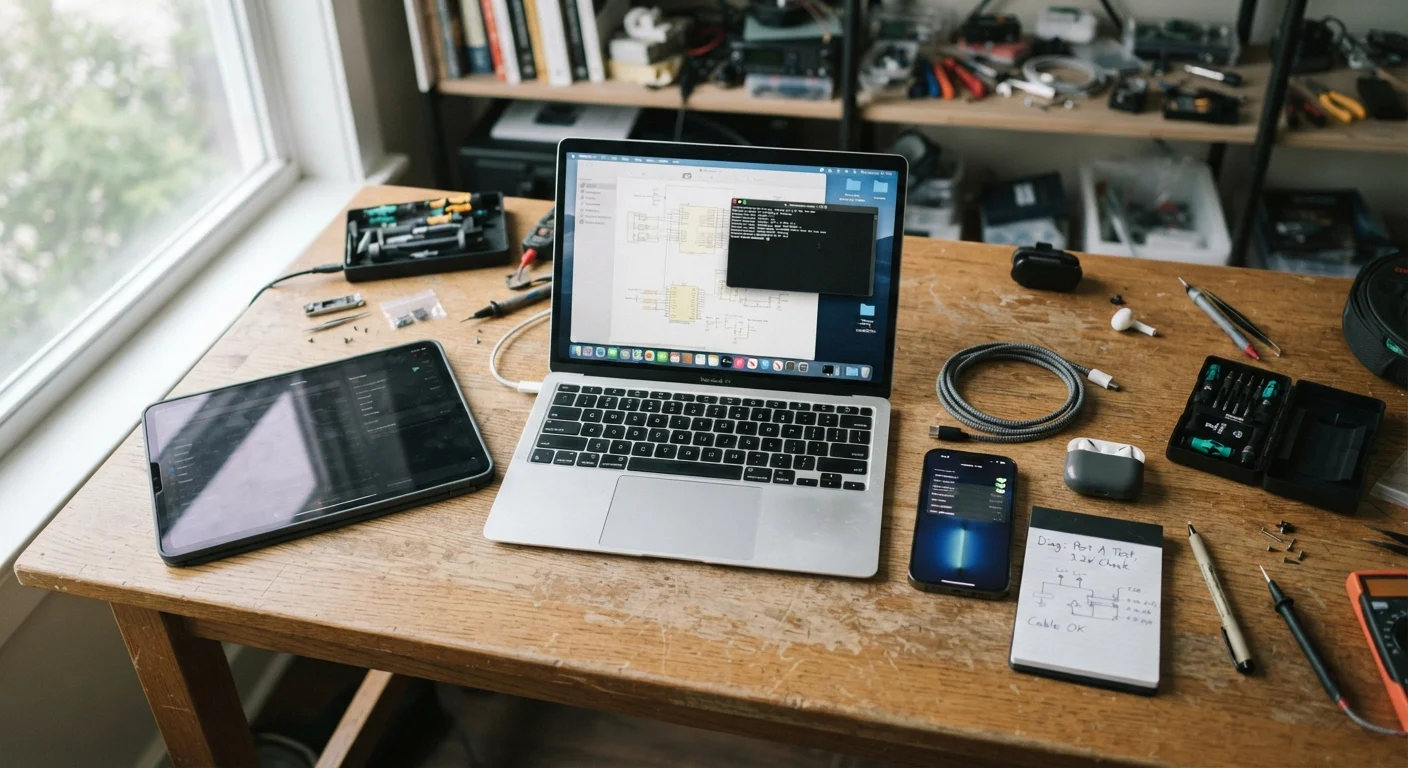
Photo: faqsvault.com editorial
Key Takeaways
- Most gadget failures are caused by power, connectivity, or software issues — not hardware damage.
- A structured checklist prevents the common mistake of replacing devices that only need a reset.
- Firmware and app updates fix many bugs that look like hardware faults.
- Checking manufacturer support pages before discarding a device often reveals known fixes.
- E-waste has real environmental costs — troubleshooting first is worth the effort.
Why Gadgets Die (or Just Look Like They Do)
There's a frustrating moment most people recognize: a gadget that worked fine yesterday simply won't respond today. Before assuming the worst, it helps to understand why devices fail in ways that look terminal but often aren't.
The majority of apparent failures fall into a handful of categories: power delivery problems, software or firmware glitches, connectivity interference, and misconfigured settings. Hardware failure — the kind that actually requires repair or replacement — is often the last explanation, not the first. Yet many people skip straight to binning a device or ordering a replacement.
If you're not yet confident with the terminology around your devices, the Everyday Gadget Glossary is a useful plain-language reference to have open while you work through this checklist. Terms like firmware, cache, and bandwidth come up regularly when troubleshooting.
This checklist is designed to be run through in order, from simplest checks to more involved steps. Work methodically rather than jumping around — many fixes resolve at step two or three, saving you the effort of the rest.
Power & Charging
Restart & Reset
Software & Firmware
Connectivity
Manufacturer Resources
After the Checklist: Knowing When to Move On
If you've worked through every step and the device still isn't functioning, you have genuinely useful information: the problem is likely hardware-level. At that point, your main options are professional repair, manufacturer warranty service, or recycling through an appropriate e-waste program.
Don't Skip the Data Wipe
Warranty May Cover More Than You Think
Before recycling or selling any gadget, perform a factory reset to wipe your personal data. This applies to phones, tablets, smart speakers, fitness trackers, and any device that stores account credentials or usage history. For guidance on what data your devices hold and how to manage it, the annual privacy checkup guide covers connected accounts and saved information worth reviewing.
If your device is fixable but you're weighing whether to bother keeping it, the questions to ask before adopting new technology checklist offers a practical framework for deciding whether repair, replacement, or doing without makes more sense for your situation. And if you're setting up something new after retiring an old device, the beginner's guide to your first smart home device can help you start confidently.
Original device manual
Provides model-specific force-restart combinations, reset procedures, and indicator light meanings.
Replacement charging cable
Used to rule out a faulty cable as the cause of power or data transfer failures.
Compressed air canister
Clears dust and debris from charging ports and vents without risking contact damage.
Manufacturer support page
Provides known issue documentation, firmware downloads, and warranty claim information for your specific model.
Cloud or local backup
Protects your data before performing a factory reset, preventing permanent data loss.
All published content on this website is for informational and educational purposes only and should not be taken as professional advice. We recommend that readers seek expert opinion before making any decisions. The website is not responsible for any actions taken based on the information provided on this website. We are not liable for any inaccuracies, modifications, or omissions in information. Moreover, external links or third-party content are provided for convenience; we are not liable for their correctness. Users are advised to verify every piece of information before they use it for any purpose.